Interacting with the Map
Navigation and selection
By default, the map shows the layout of Links (in blue lines) and Intersections (in grey pinpoint). Use your mouse to drag and adjust the zoom of the map.
Depending on your bounds selection, the map will display elements within your selection. For example, if you draw a polygon, only Links and Intersections within that polygon will be shown.
Flying to a particular location
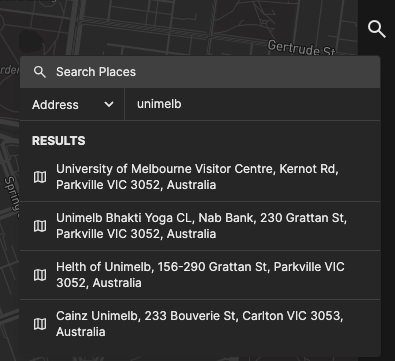
You can use the Address Search tool to jump to a particular location on the map.
- Click on the magnifying glass icon on the right of the screen. A popup will appear.
- Select the type of search. The options are:
- Address: a free-text address search
- Road: an exact Link ID
- Intersection: an exact Intersection ID
- Enter the search query on the text field, and press Enter.
- A list of options will appear below the text field. Click on one of the options, and the map will fly to that location.
Link or Intersection details
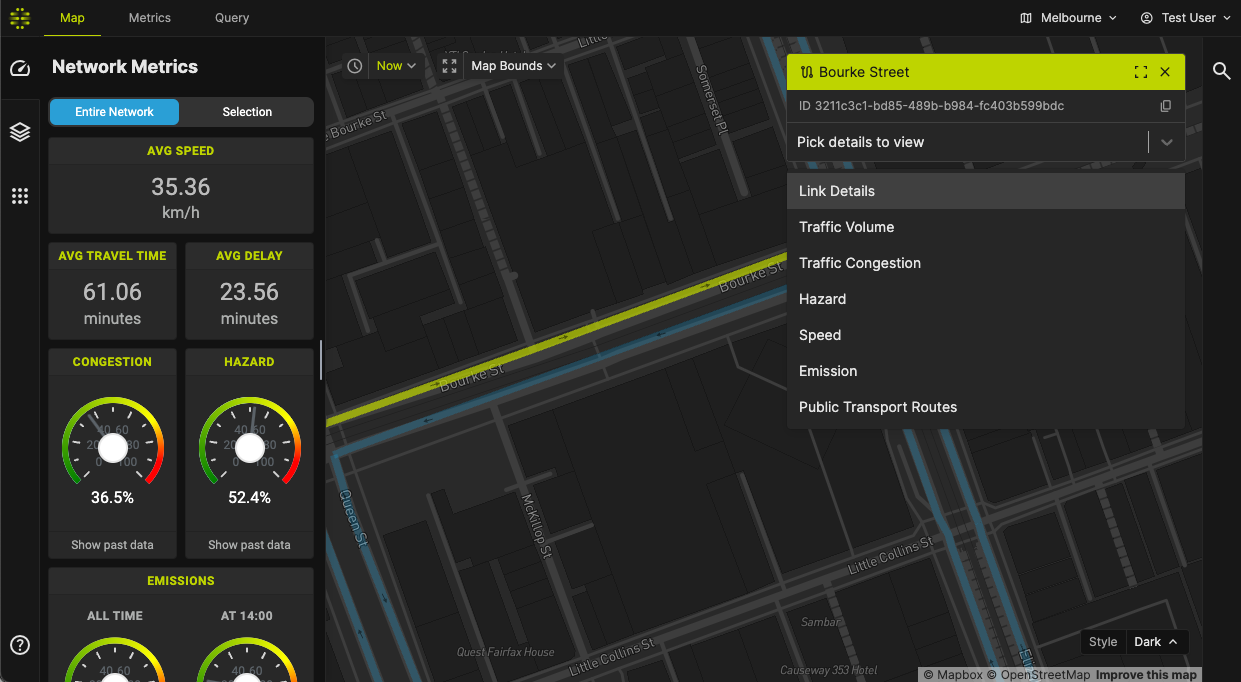
You can click on a Link or Intersection to view the details of that particular Link/Intersection.
Viewing a detail
Click on Pick details to view and choose which details to view.
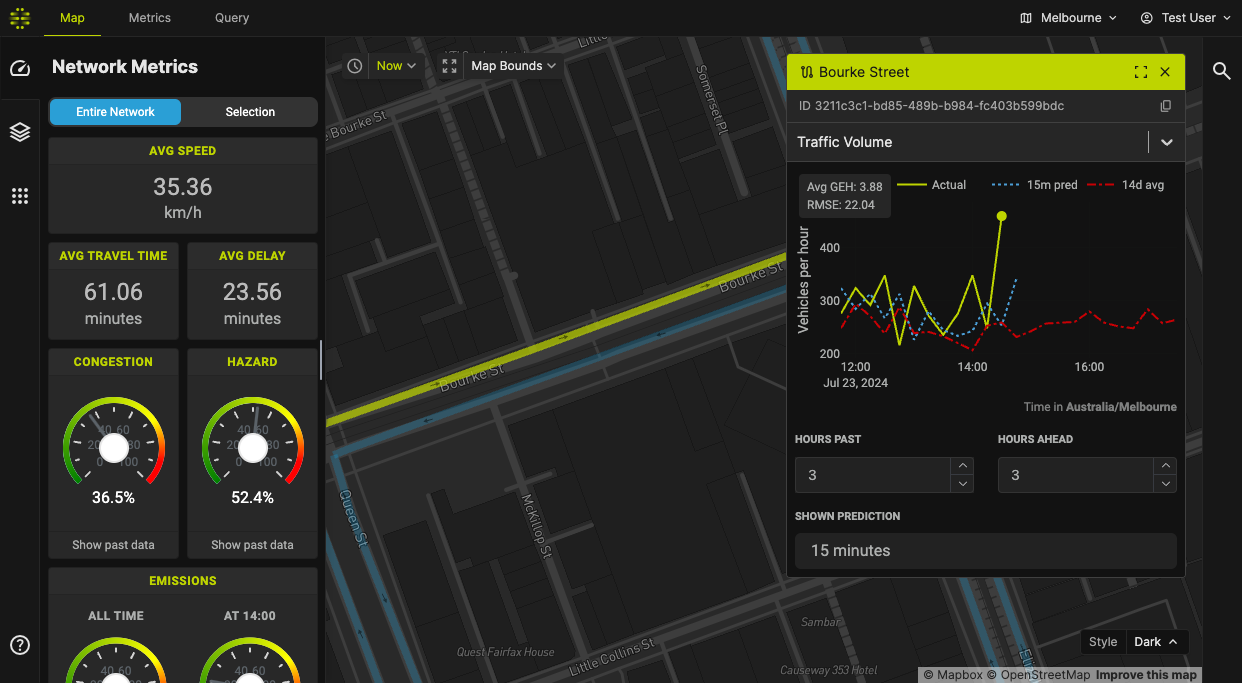
The following image shows the historical and predicted traffic volume for the particular link.
Map visualisation
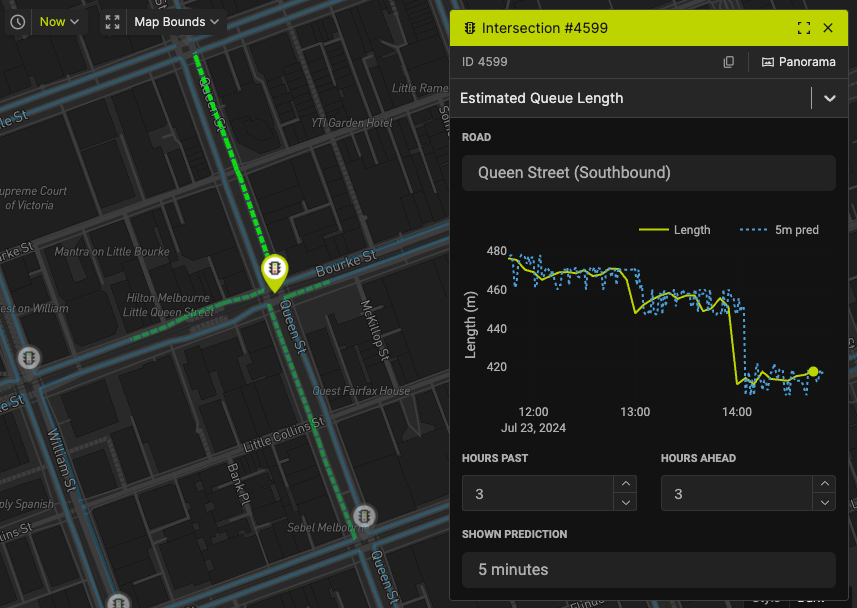
Some details pane will overlay a visualisation on the main map. For instance, the Estimated Queue Length detail view visualises the queue length on the map, as seen below. You can also click on the overlaid visualisation to interact with the details view.
Layers
Layers are extra visualisations that are drawn on the map. There are several layers, which you can independently add to or remove from the map. More on Layers here.
Adding or removing layers
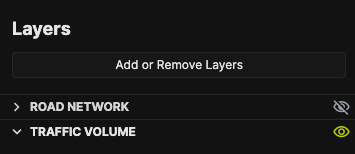
- First, use the Sidebar to navigate to the Layers pane (second from top).
- Then, click on "Add or Remove Layers". A popup will appear containing a list of layers you can add.
- Check on the layers you want to view, and uncheck to hide.
- The layer will appear on the left pane, and the visualisation will appear shortly on the map. Click on the layer name to expand.
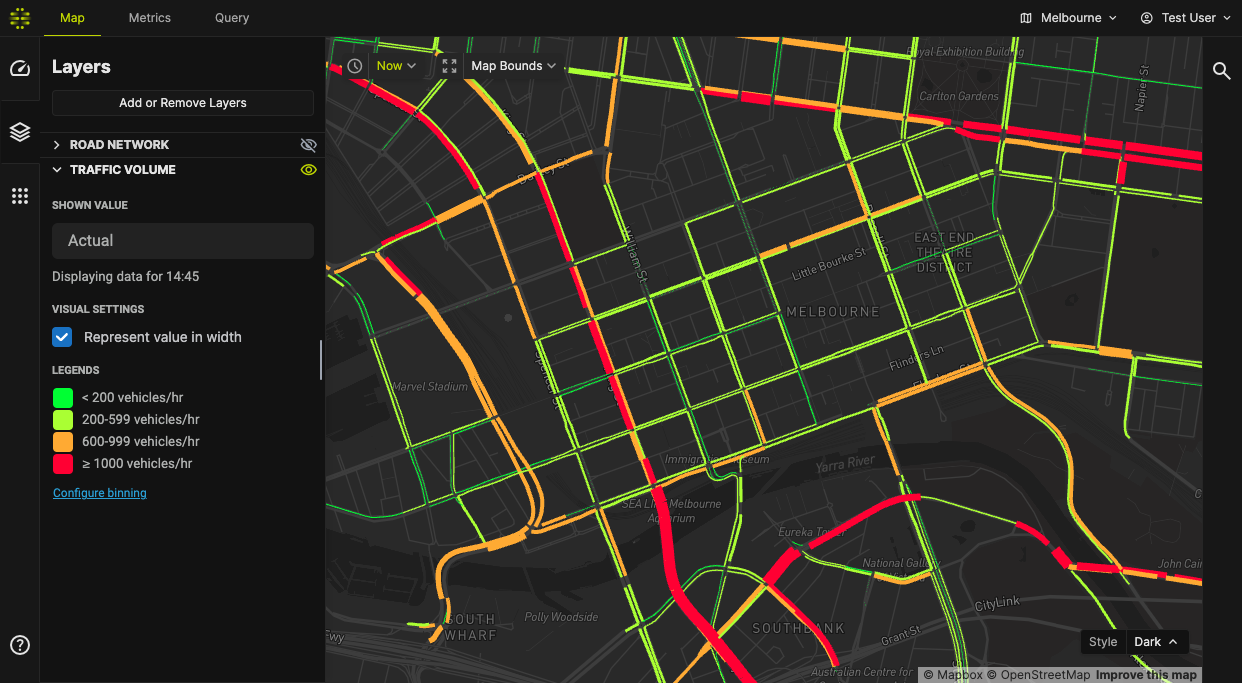
Here's an example of the Traffic Volume layer:
Hiding layers
You can quickly hide layers by clicking on the toggle to the right of the layer name.